Square Setup
This guide covers the Square tools and account setup you need to effectively develop within MKK.
Complete Square Invitation
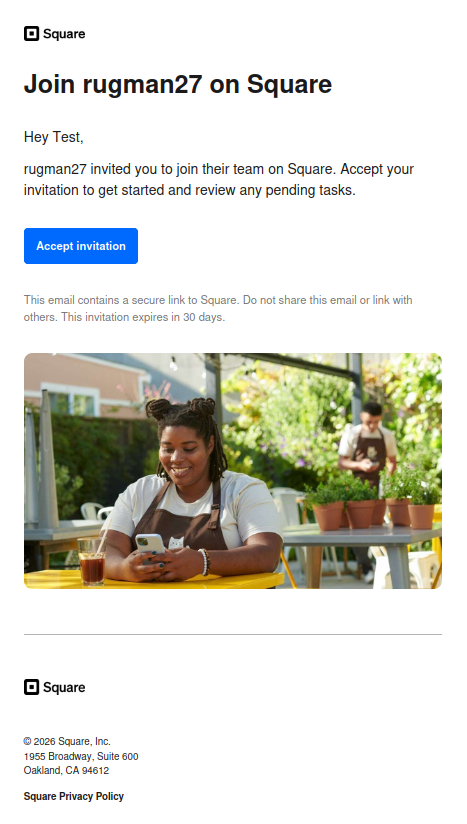
When you are added to the team, an MKK admin should invite you to join the Square business. You should receive an invitation via email; follow the steps to set up your Square account (e.g., create a password).
You do not need to download the Square Teams app at all.
Accessing the main dashboard
After creating your square account it will prompt you to download the square teams app again you do not need to download that app! instead you should go to the main square dashboard Here you can see that creating your login worked
This is the main dashboard for all of square. This is not where you will be doing work however actions here still will not harm anything
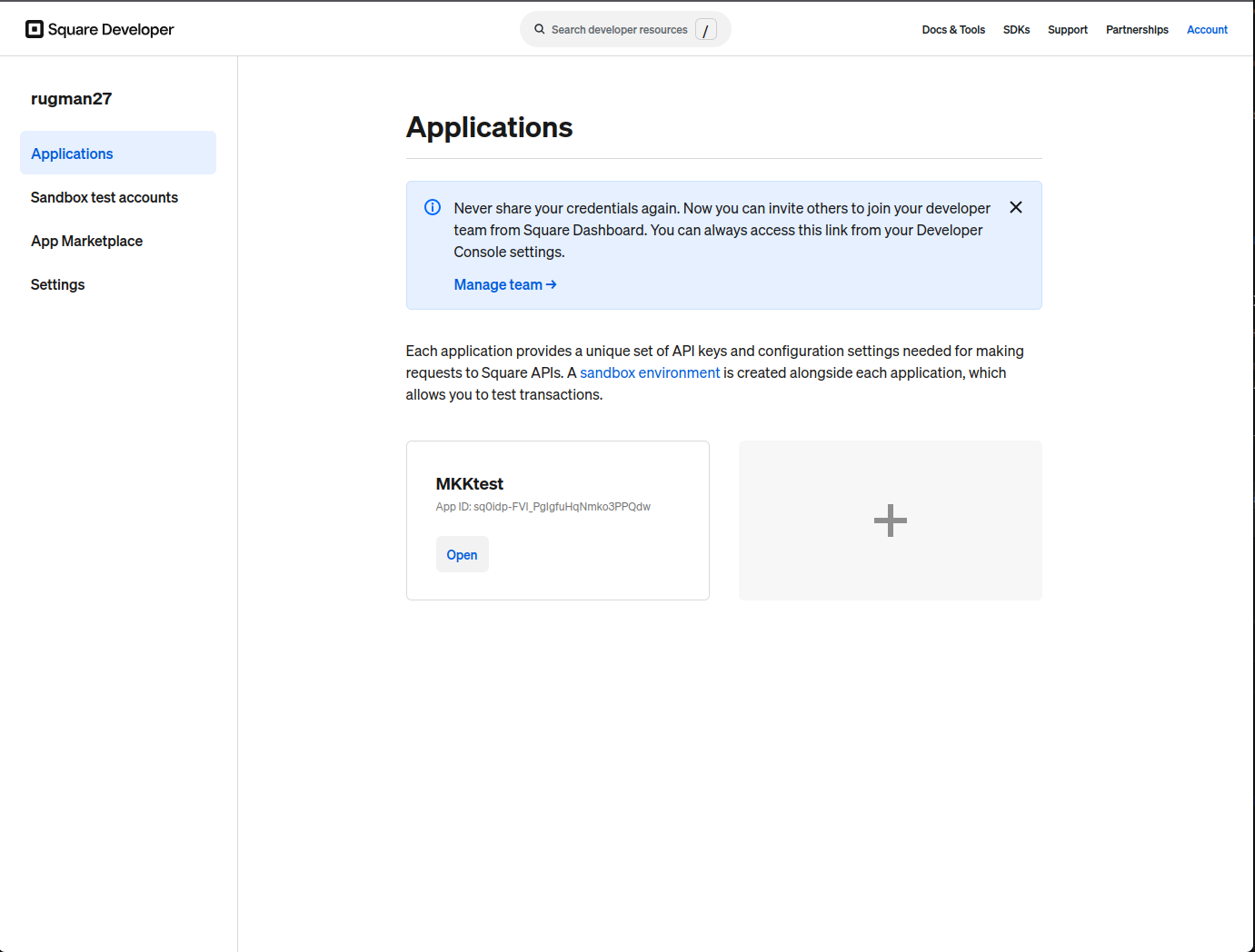
The main interaction point for developers will be the square developer console
Square Sandbox Dashboard
To access the square sandbox dashboard click on the Sandbox test accounts link on the left hand side of the screen.
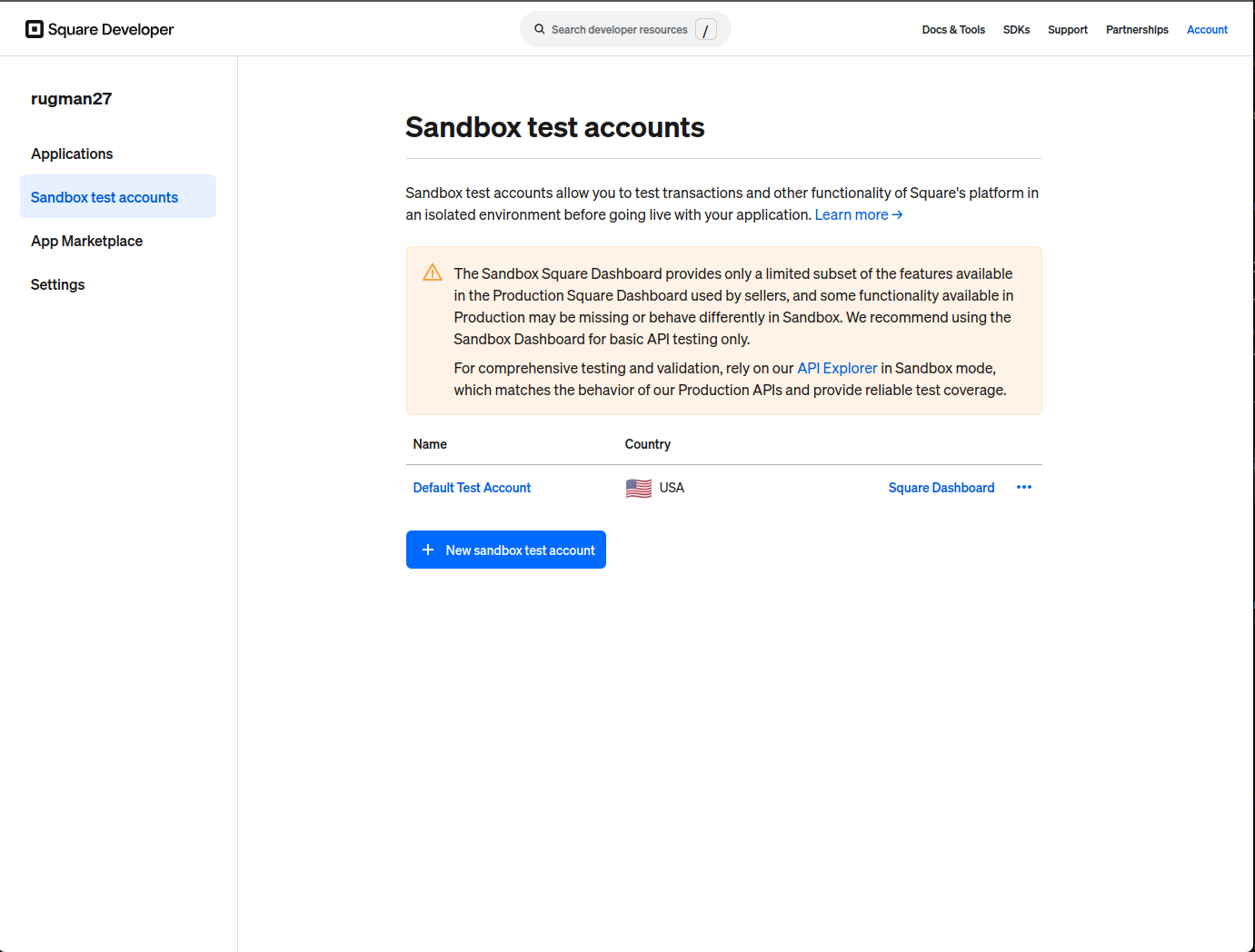
On this page you will see a list of sandbox test accounts, click on Square Dashboard for test account
Default Test Account (Should be the only one there)
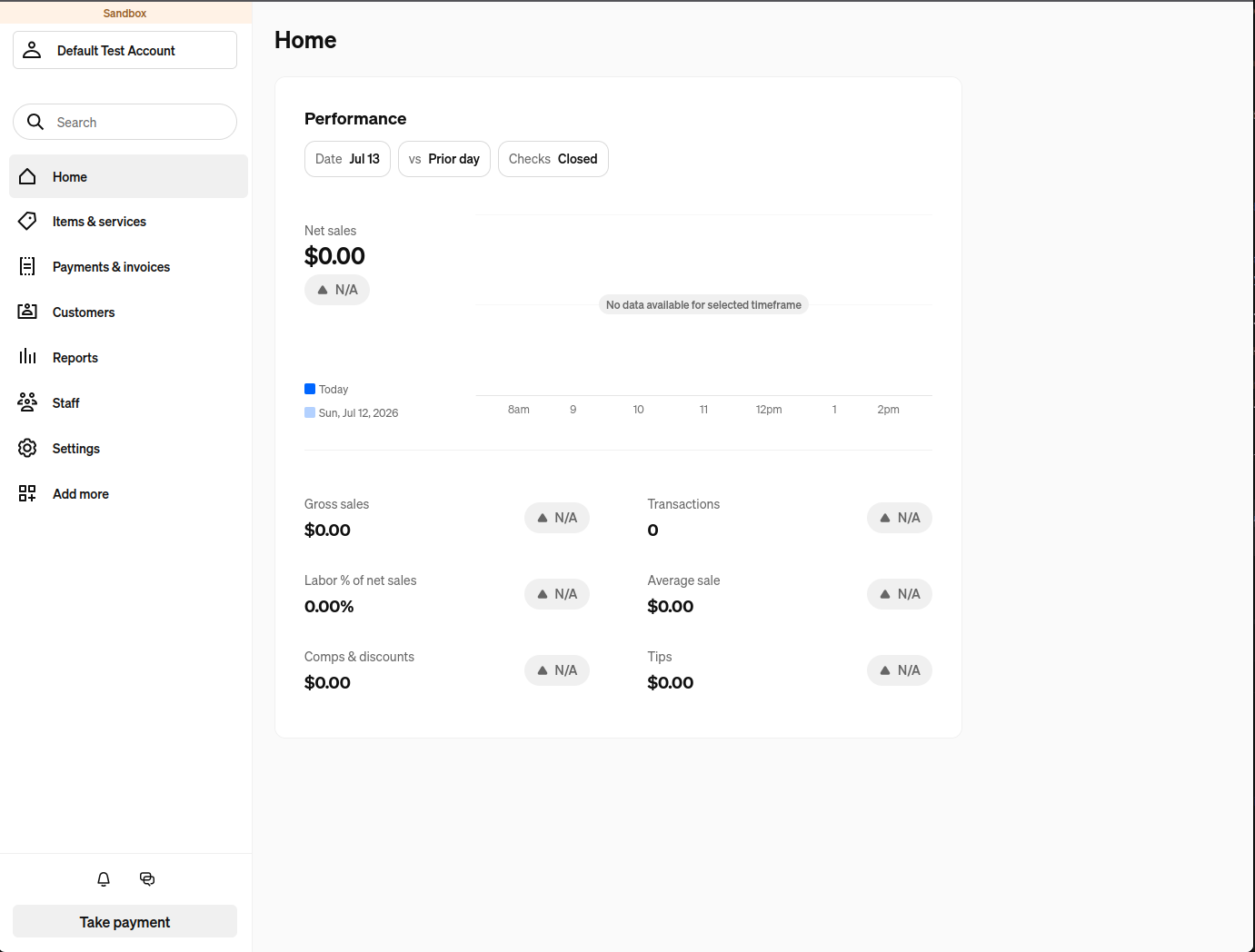
Once there it will load up a dashboard identical to the main one but this is only for testing and development. This is the dashboard that the MKK app connects to when using a sandbox square API token